Advanced rules
Create path rules for CLI tools, scripts, and packages
Use a file path or the Packages browser to create rules for command-line executables, script packages, and directories.
Normal macOS apps are commonly identified by Bundle ID. CLI tools and scripts do not have a stable app bundle, so Antify also supports executable, package, and directory paths.
Choose an entry point
- Add Rule: drop an executable, script, directory, or .app into the form, or choose a path manually.
- Packages: scan recognized Node and Python package locations and choose a package executable.
- Discovery: run the command first, then use Add Rule from an unmatched record in Connections. Discovery runs for at most 10 minutes and then switches itself off.
Choose an executable directly
- 1
Find the real path
Use a system command such as which in Terminal to confirm the executable path, then drop or select that file in Add Rule.
- 2
Inspect the resolved item
The form shows the resolved path and type. Confirm that it is the binary you actually run, not another installation with the same name.
- 3
Choose an action
CLI rules support Proxy, Direct, and Block. Proxy also requires an upstream proxy selection.
- 4
Choose Configurations and save
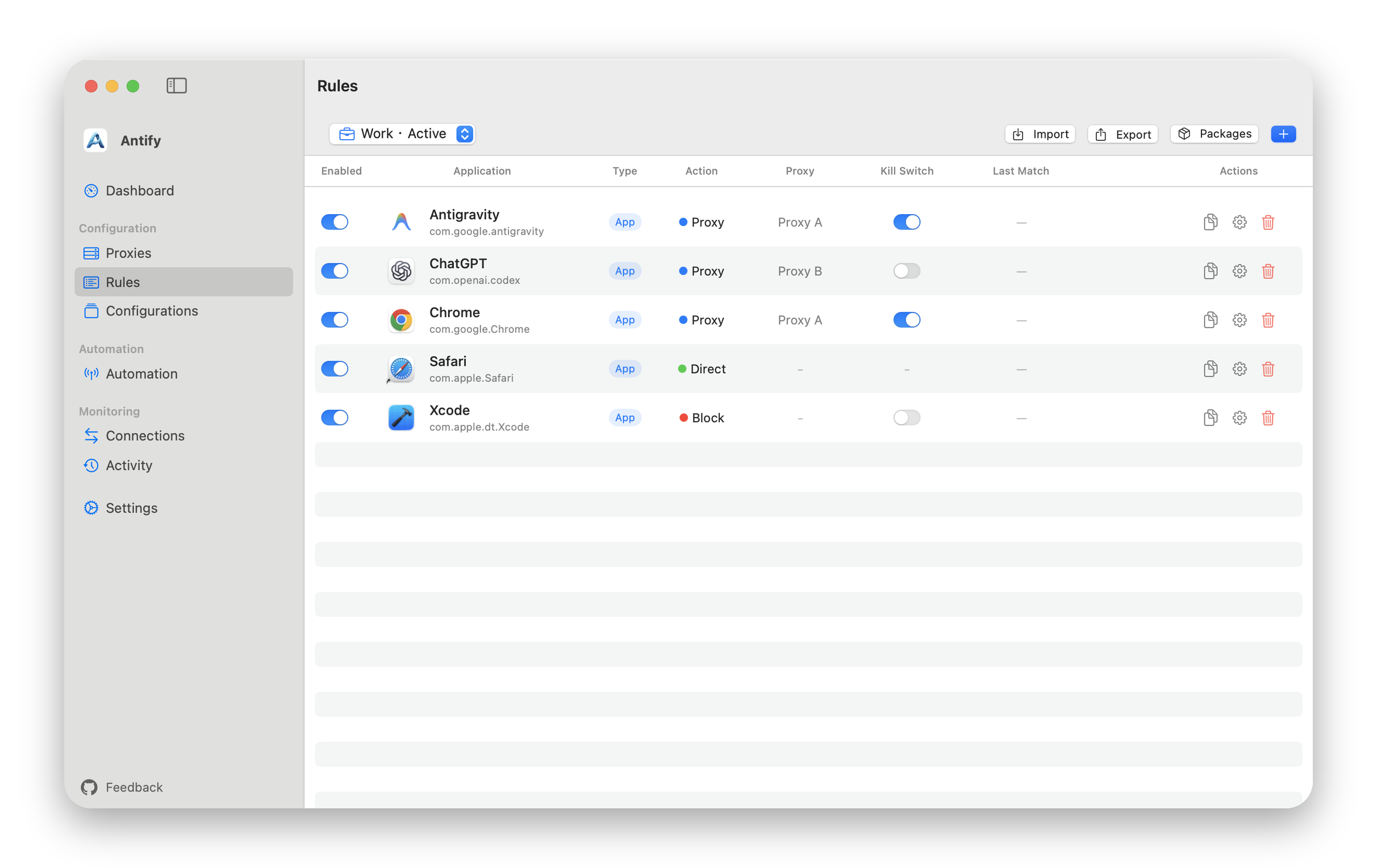
A path rule is active only inside the Configurations that contain it, and only the Active Configuration runs. If the chip at the top of Rules says Inactive, rules added there do nothing until you activate it.
Use the Packages browser
Packages in the Rules toolbar scans recognized global Node and Python installation locations and groups their executable entries by package.
Selecting an entry opens a Rule form with its path prefilled. Still review the action, proxy, and Configuration; a scan result is not a saved rule.
Tools from a version manager: point at the symlink
Package managers often install a tool under a directory named after its version, so the exact path changes on upgrade and the rule stops matching. The answer is to build the rule on the symlink rather than the real file it points to, such as the entry in ~/.local/bin/ or the pnpm node_modules/<package>/… path.
Antify does not resolve symlinks when you pick a file: the rule stores the path you selected. When the package manager repoints that link on upgrade, the extension re-resolves it within about a second, with no rule to edit. If a process from the previous version is still running, it keeps matching too, since each rule retains its three most recent targets.
Because a symlink is already the stable end, selecting one produces no versioned-path warning. That is expected.
When there is no symlink to point at
If the tool offers no symlink entry, the form recognizes the version segment and proposes a replacement with a matching button: Use This Path means it found a version-free path (this is the pnpm case), while Use Directory means the fallback is a directory rule on a stable parent. When neither exists, the form warns without offering a way out.
Verify a CLI rule
Save the rule, make sure Antify is running, then start the command again. Existing processes do not restart automatically when a rule is added.
If the rule does not match, enable Discovery in Connections, rerun the command, and inspect the recorded path. When the active Configuration’s default is Direct, enabling Discovery first opens Discovery Fallback, where you choose what happens to apps without a rule. Homebrew, system, and version-manager installations may provide different binaries with the same name.