App rules
Set apps to Proxy, Direct, or Block
Create app rules so different apps use different proxies, connect directly, or have network access blocked.
A rule combines what application to match with how to handle its connections. Every Configuration has its own rules and default behavior.
The three actions
- 1
Proxy
Connections are sent to the selected proxy server. A Proxy action requires an existing proxy to be selected.
- 2
Direct
With no Target Hosts and no Target Ports, traffic fully bypasses AntifyCore: it does not appear in Connections or in the statistics. Once either is set, connections that go direct because of the filter appear in Connections as Direct rows, and the row’s details say why.
- 3
Block
Network connections from the matched app are blocked. No proxy server is required.
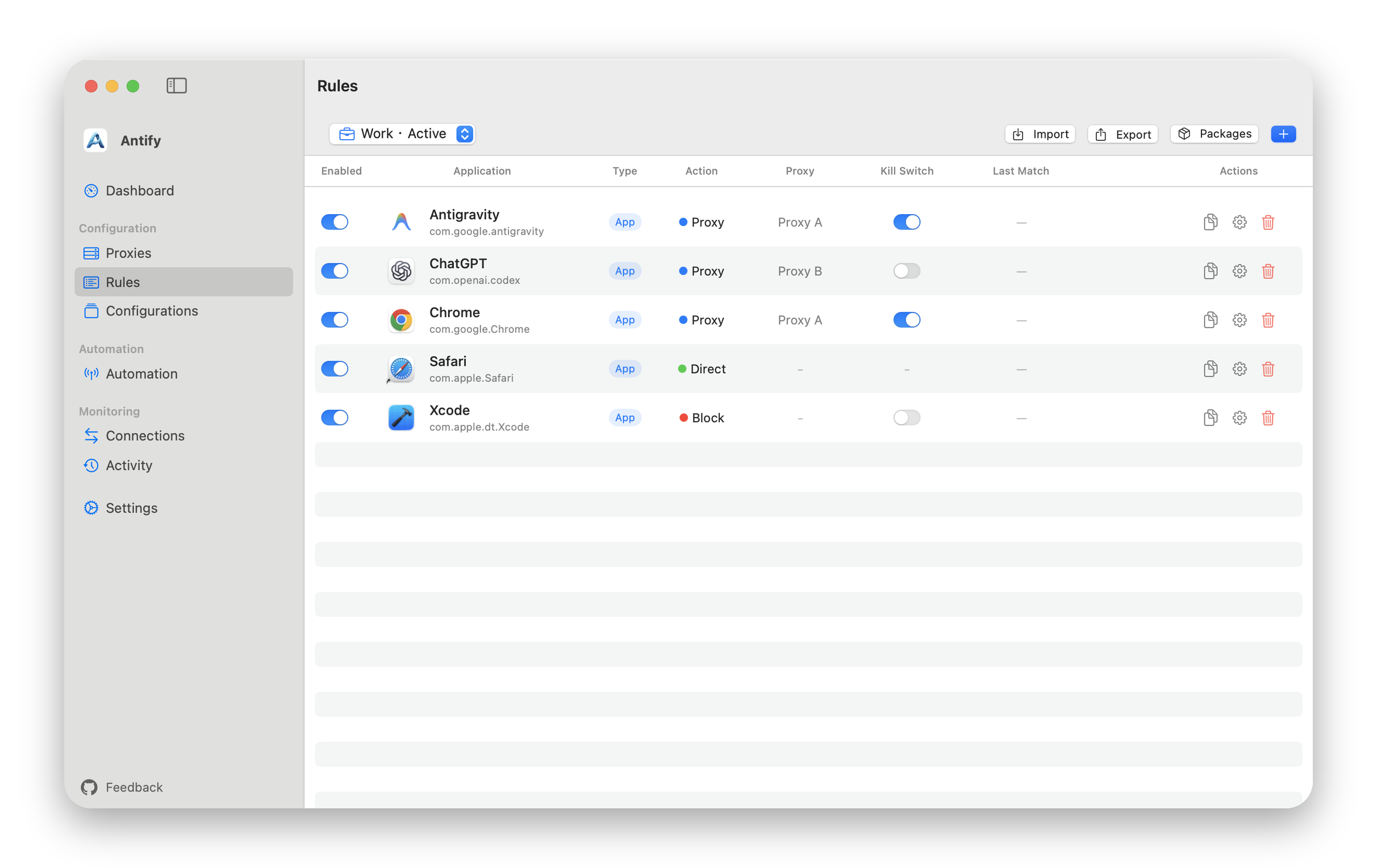
Create an app rule
- 1
Choose the app
In Rules, click Add Rule, then drop a .app into the form or choose it with the file picker. Antify resolves its path and identifier.
- 2
Choose an action
Select Proxy, Direct, or Block. If you choose Proxy, select an upstream proxy server as well.
- 3
Choose Configurations
When multiple Configurations exist, a new rule can be added to one or more of them. The active one carries an Active label.
- 4
Save and inspect
Return to the list and confirm that Application, Action, and Proxy match your intent. If the Proxy column shows Not found or -, the proxy this rule points at is missing or disabled; its traffic is blocked rather than sent direct, so edit the rule and pick a proxy.
Block an app from the network
- 1
Identify the app
Choose the app in Add Rule and confirm the displayed name and path.
- 2
Choose Block
Set Action to Block. A Proxy Server is not needed.
- 3
Reconnect to verify
Save the rule, make sure Antify is running, then reopen the app or let it establish a new connection. Connections can show blocked flow records.
Which processes a rule covers
Components inside the app bundle are handled by that app rule. Other processes the app starts are not covered by default, which includes a terminal running curl and an IDE running its build tools.
The Apply to spawned processes switch in the rule form controls this. It is off by default and only applies to .app rules. Consider the scope before turning it on: if the rule targets a terminal or an IDE, everything it launches then follows this rule.
Match a family of apps by Bundle ID prefix
In Add Rule, the Path field also takes a Bundle ID prefix such as com.apple.*, which matches every app under it. The * must be the whole last label after a dot.
A prefix rule has no Target Hosts, Target Ports or Apply to spawned processes. An app’s own rule beats a prefix rule, and when several prefixes match, the longest one wins.
Narrow a rule by host or port
Advanced Options provides Target Hosts and Target Ports. Target Hosts takes entries separated by commas, semicolons or new lines: names (*.example.com also matches example.com itself), IPs, IPv4 ranges (10.1.0.0-10.5.255.255) or CIDR. A leading - excludes an entry (-ads.example.com). A lone * and 192.168.1.* are rejected; write 192.168.1.0/24. Target Ports takes commas or semicolons: single ports, ranges (8000-9000) and exclusions (-3124).
Traffic that misses those filters is not automatically blocked; it follows the Configuration default. If an app uses encrypted DNS, Antify may see only IP addresses, so hostname filters may not match.