Proxy servers
Add and test a proxy server
Understand how SOCKS5, HTTP, HTTPS, credentials, failure behavior, and latency tests map to the current app.
The Proxies page stores upstream servers. App rules on the Rules page decide which app uses which proxy.
Choose a proxy type
- SOCKS5: treated by the current app as the proxy type that can support both TCP and UDP.
- HTTP: used for TCP connections.
- HTTPS: connects to an upstream HTTP proxy over TLS and is also TCP-only.
Enter server details
- 1
Name
Give it a name you will recognize, such as Office Proxy. It only shows inside Antify and has no effect on the connection.
- 2
Server Address and Port
Enter the listener address of a local proxy app or a remote proxy host. The port must be between 1 and 65535.
- 3
Username (optional) and Password (optional)
Leave credentials empty when the proxy does not require them. Passwords are stored through macOS Keychain rather than as plain text in the proxy record.
- 4
Save
With the type set to HTTPS, saving checks the TLS handshake. If it fails, you are told that if the port is actually a plaintext proxy, you should change the type to HTTP.
Choose what happens on failure
Direct on Failure is off by default, which is the more conservative behavior: if the proxy cannot be reached, the affected connections simply fail until it recovers.
Turning it on lets a connection bypass the proxy after a failure. This reduces downtime, but traffic that was expected to use a proxy may connect directly. Turn it on only when that boundary is acceptable.
Decide whether the proxy reaches private networks
Can reach private networks is off by default. While it is off, connections to private addresses (such as 192.168.x.x) go direct and are never handed to the proxy.
Turn it on only when the proxy itself can reach the private network you need, such as an office jump host. The local network this Mac is on stays direct either way.
Turning it on reveals a Custom networks (optional) field. Once it is filled in, only the networks you listed go through the proxy and every other private address stays direct; left empty, every private network except the one this Mac is on goes through it.
- The field takes IP addresses and networks only, such as 10.2.2.0/24; hostnames and wildcards are rejected.
- If the proxy is missing or disabled, rules and defaults that use it block the app’s traffic, private addresses included.
- Block rules are unaffected by this switch: private addresses are still blocked.
Use latency tests
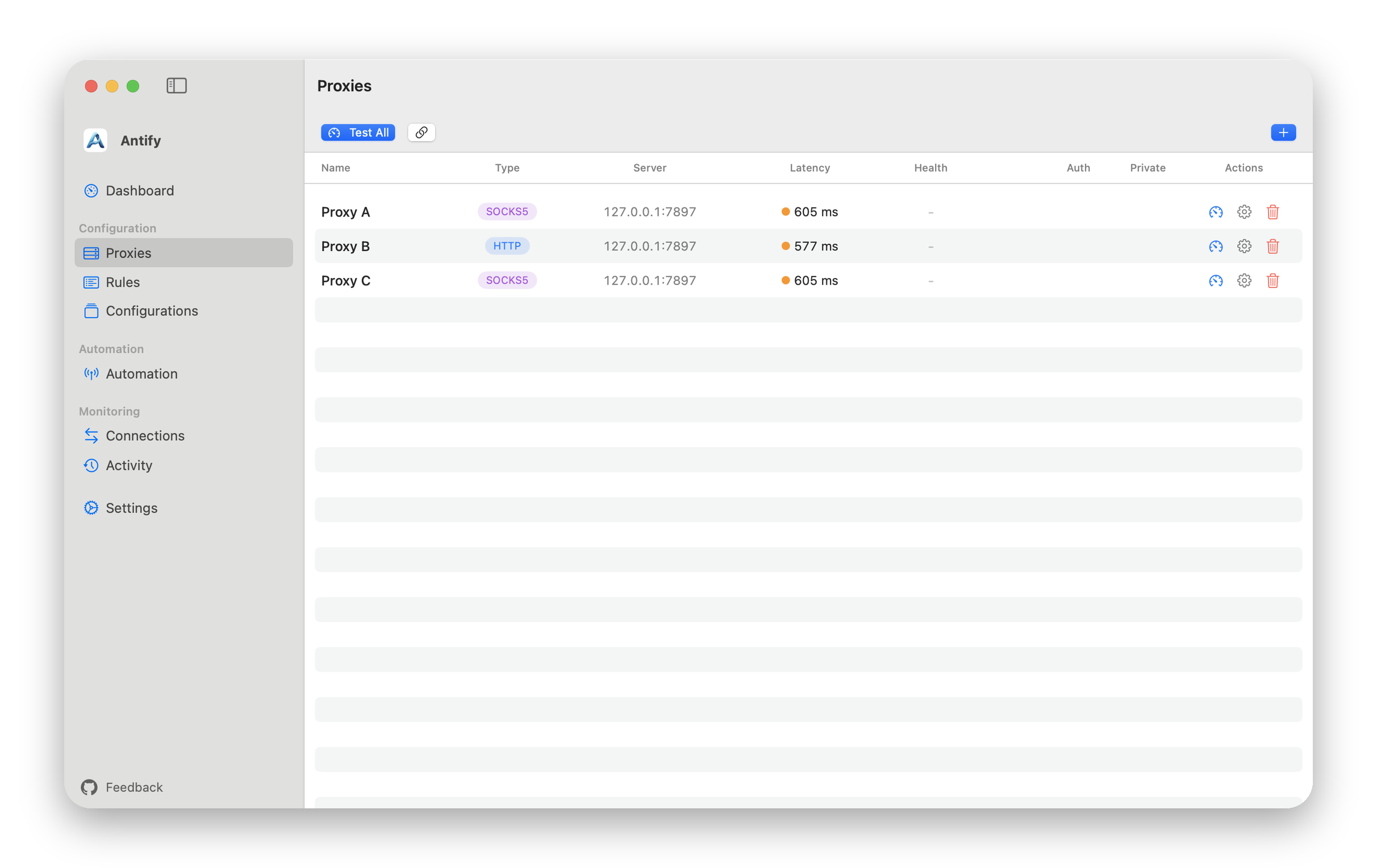
The gauge button checks one proxy. Test All checks every proxy in the list. Successful results show access latency. For a failure, click the ⓘ beside the result (Why the latency test failed) to tell connection, handshake, and authentication problems apart. A result measured on an earlier network is shown as out of date.
Use the link button to set the test URL. Pick a stable HTTP or HTTPS endpoint that you are allowed to access and that represents your actual use case.
Edit and delete
Edit the address, port, or type and save; neither Antify nor the extension needs restarting. Deleting a proxy is blocked while an app rule or a Configuration default still uses it.
If deletion is blocked, remove those references in Rules or Configurations first. While Discovery is on, its fallback proxy cannot be deleted either.