First installation
Install Antify and its system extension
Opening Antify for the first time: install the system extension, approve it in macOS, and choose between setting up manually and restoring a backup.
You have to approve the Antify system extension yourself in System Settings, and where that switch sits differs between macOS 14, 15, and 26. Each version is spelled out below.
Before you start
- macOS 14.0 or later is required.
- Download from the site, move Antify to Applications, then open it.
- If you have a backup exported from another Mac, have the file ready; the second step of the setup uses it.
Install and approve the system extension
On the Extension step, click Install Extension. macOS then asks you to approve it yourself. Click Open System Settings and follow the path for your version:
- 1
macOS 26
Go to General → Login Items & Extensions. Under Extensions, switch to the By Category tab — System Settings opens on By App, and Network Extensions only exists under By Category. Click the ⓘ button next to Network Extensions, turn on the switch next to Antify, confirm with Touch ID or your password, and click Done.
- 2
macOS 15
Go to General → Login Items & Extensions, scroll down to Network Extensions, and click the ⓘ button at the end of that row. Turn on the switch next to Antify, confirm with Touch ID or your password, and click Done.
- 3
macOS 14
Go to Privacy & Security and scroll to the Security section, where macOS says system software from Antify was blocked from loading. Click Allow, then confirm with Touch ID or your password.
Set up manually, or restore a backup
With the extension installed, the setup asks how you want to continue. There are two options:
- Set Up Manually (recommended): add a proxy and your first rule, step by step, which is what the following steps do.
- Restore from Backup: use a backup you exported from Settings → General. Click Choose Backup…, pick the file and confirm with Restore; the manual proxy and rule steps are then skipped.
The remaining steps
Setting up manually walks through the rest in order: add a proxy, choose a global default for apps without a rule of their own, create your first app rule, start Antify, and set notification preferences. Each has its own guide. Skip ends the setup right away, and whatever you did not finish can be done later from the main window.
Confirm it is working
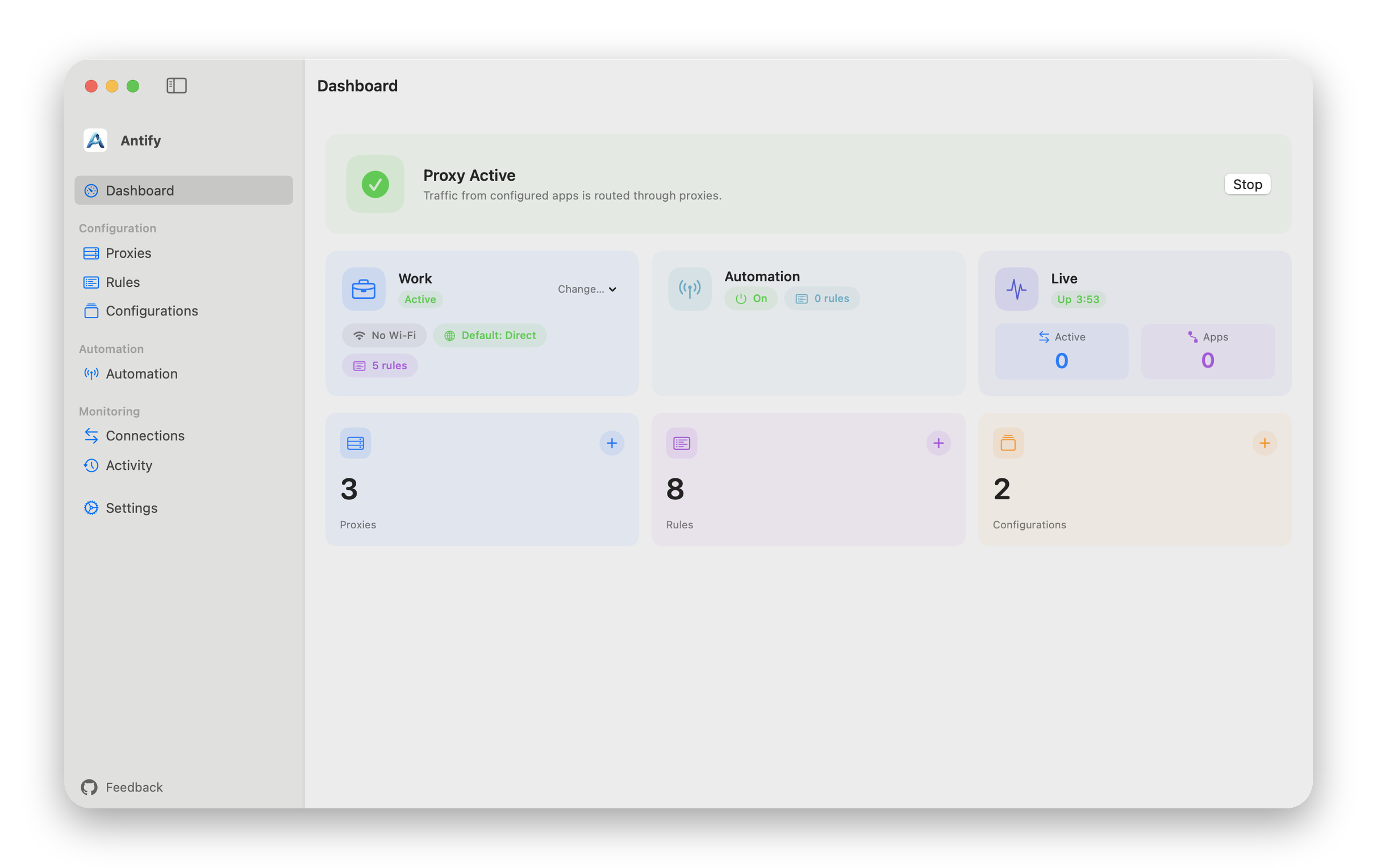
In the main window, the Dashboard shows the state of the system extension and of the proxy. Proxy Active means Antify is running.
That does not mean every upstream proxy you entered works. Whether a proxy itself is reachable is what the latency test on the Proxies page answers.
If you missed a system prompt or want to grant a permission later, Settings → Permissions shows the state of the network extension, notifications, location and login items, and opens the matching System Settings pane.