Automation
Use Automation to switch Configurations by Wi‑Fi
Bind home, office, or other Wi‑Fi networks to different Configurations so app rules and default network paths change with the environment.
An automation is an “SSID → Configuration” mapping: Home WiFi activates Home, Office WiFi activates Office. One Configuration can carry several Wi‑Fi mappings, but one SSID cannot be assigned to two Configurations.
Prepare Configurations for each environment
Create Configurations such as Home and Office. Each can contain different app rules, default behavior, default proxy, and proxy settings.
Apps without a specific rule can default to Direct, Proxy, or Block. If your goal is to proxy only selected apps, Direct is usually the appropriate default.
Manually activate and verify each Configuration before adding Automation. This separates a broken Configuration from an automation that did not trigger.
Allow Antify to read the Wi‑Fi name
- 1
Open Automation
If the page shows Location permission required, click Enable.
- 2
Review the permission purpose
Antify first explains that it needs only the current Wi‑Fi SSID and that macOS requires this permission.
- 3
Continue and allow
Click Continue, then allow Antify in the standard macOS location prompt. If permission was denied earlier, use Open System Settings from the Automation page, or grant it under Settings → Permissions → Location.
Add a Wi‑Fi automation
- 1
Enable the global switch
Make sure Switch Configurations Automatically is enabled. Turning it off preserves existing mappings but stops automatic switching.
- 2
Add a Wi‑Fi Network
Click the plus button at the bottom of the Wi‑Fi Network section.
- 3
Enter the SSID
When authorized and connected, Use Current Network fills in the SSID. You can also type the Wi‑Fi name manually.
- 4
Choose the target Configuration
The form initially selects the current Active Configuration. Confirm the target, then click Add Automation.
- 5
Inspect the mapping
Automation shows “SSID → Configuration.” If the SSID is already assigned, the form names its current Configuration and prevents a duplicate.
Verify and troubleshoot
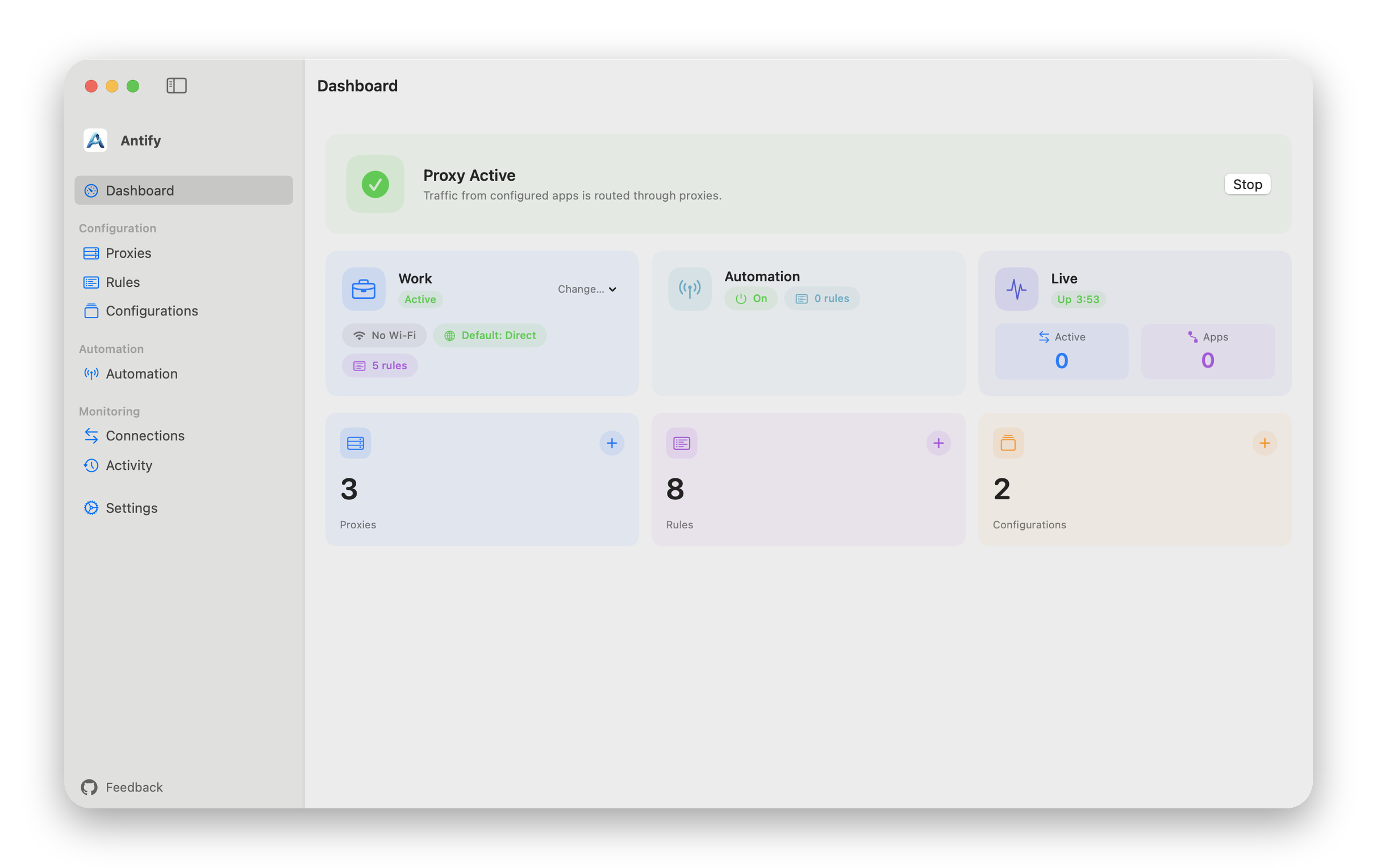
Connect to the target Wi‑Fi, wait briefly, then inspect Dashboard or Configurations to confirm that the Active Configuration changed. Activity records the automatic-switch request and whether the Configuration switch succeeded or failed.
If nothing happens, check the global toggle, location permission, current Wi‑Fi name, and mapped SSID in that order. A manually entered name must exactly match the SSID read by macOS, and a Wi-Fi name containing a comma cannot be matched.
Switching only happens when the connected Wi-Fi changes (and once at launch if location is already allowed). If you switch Configuration by hand and stay on the same Wi-Fi, nothing switches it back.
You can also activate the target manually in Configurations. If manual switching does not produce the expected routing, fix that Configuration’s rules or proxy settings first.
Current release boundary
Connecting to an unmapped Wi‑Fi leaves the current Configuration active. Disconnecting Wi‑Fi also does not switch to a default Configuration; the current UI has no “restore when leaving” rule.
Wi‑Fi automation only switches Configurations. It does not create proxies or app rules for you, so configure the target Configuration first.
Automation also displays Active App and Time, but both are marked Coming Soon and cannot be configured.